
User Guide
Colorest offers multiple coloring methods to help you color faster and better. For those who closed the help page immediately, here's a detailed guide on how to use the coloring tools with proper gestures.
Two Canvas Operation Modes: Two-Hand Mode, One-Hand Mode
Two-Hand Mode is the default coloring mode. It supports both two-hand and one-hand button operations.
You can perform single tap coloring, continuous coloring, gradient ring coloring, and free drawing with one hand.
Recommended for iPad version.
One-Hand Mode  is also called Canvas Mode. Single-hand sliding moves the canvas. Combined with
 , you can perfectly move and zoom the canvas with one hand.
Note: In this mode, one-hand free drawing and continuous coloring are disabled. You need to press the button again to switch to two-hand mode for continuous coloring. Other operations like single tap and gradient ring work normally.
Recommended for iPhone version, where your thumb can easily reach these three buttons.
Single Tap Coloring

This is the most basic and simple operation. Single tap works in both normal coloring mode and canvas mode.
Note: When using continuous coloring, colored blocks cannot be modified, but you can use single tap to change the color.
Continuous Coloring
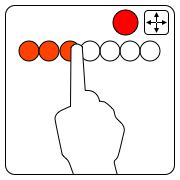
For multiple blank areas, you can color continuously by dragging. The app protects already colored blocks, so continuous coloring won't respond when touching these areas.
Note: In one-hand mode , this operation becomes canvas movement. In drawing mode  , this becomes normal drawing.
Radial Gradient
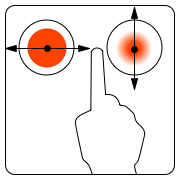
Gradient is great! Long press the canvas, make sure your finger doesn't move too much, and after half a second an icon will appear.
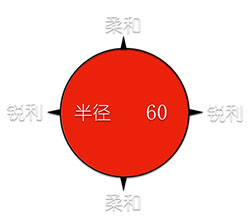
Then move your finger horizontally or vertically. Horizontal movement fills with sharp-edged gradient ring, vertical movement fills with soft-edged gradient ring.
Note: In coloring mode, the gradient ring won't exceed the coloring area. In drawing mode, it can exceed the area.
Free Drawing
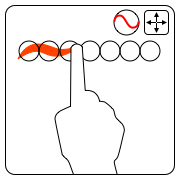
Click  to enable free drawing. In mode, you can adjust pencil radius
  and opacity
  .
.
Auto Coloring
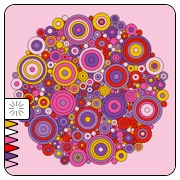
Put six pencils into the favorites, tap Auto Color, and watch the magic happen. Auto Coloring will randomly color uncolored areas with these six pencils.
Two Tips

Tip 1: Erase the area you want to auto color, then auto color the erased area. Auto Coloring only works on uncolored areas.
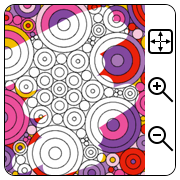
Tip 2: Zoom the canvas to color a local area. Auto Coloring only works on the screen area.
Note: Auto Coloring cannot be stopped once it starts.